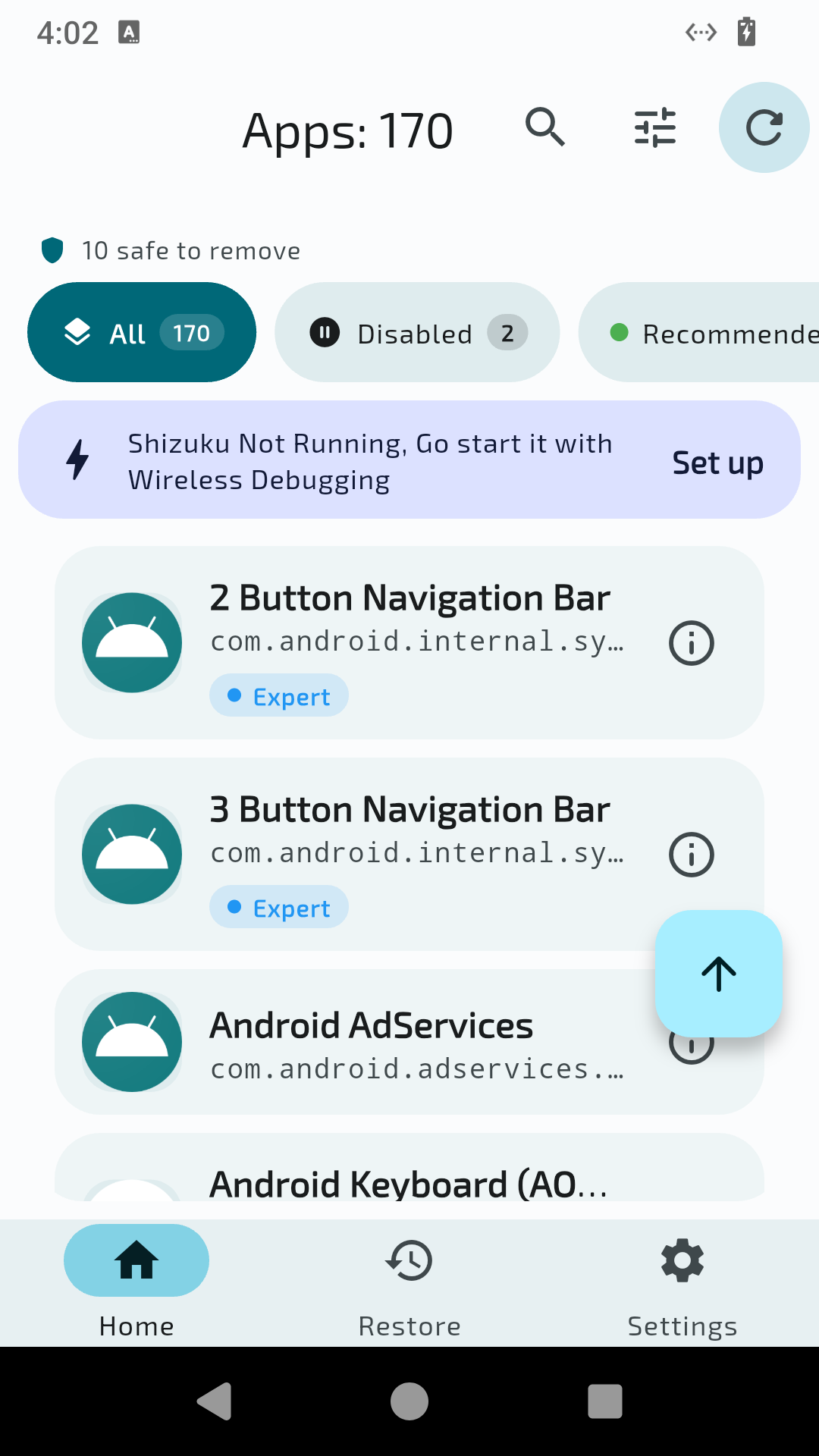
Remove Bloatware Easily
Say goodbye to unnecessary system apps! Debloater helps you uninstall pre-installed bloatware with just a tap, freeing up space and improving performance.
Formerly System App Remover
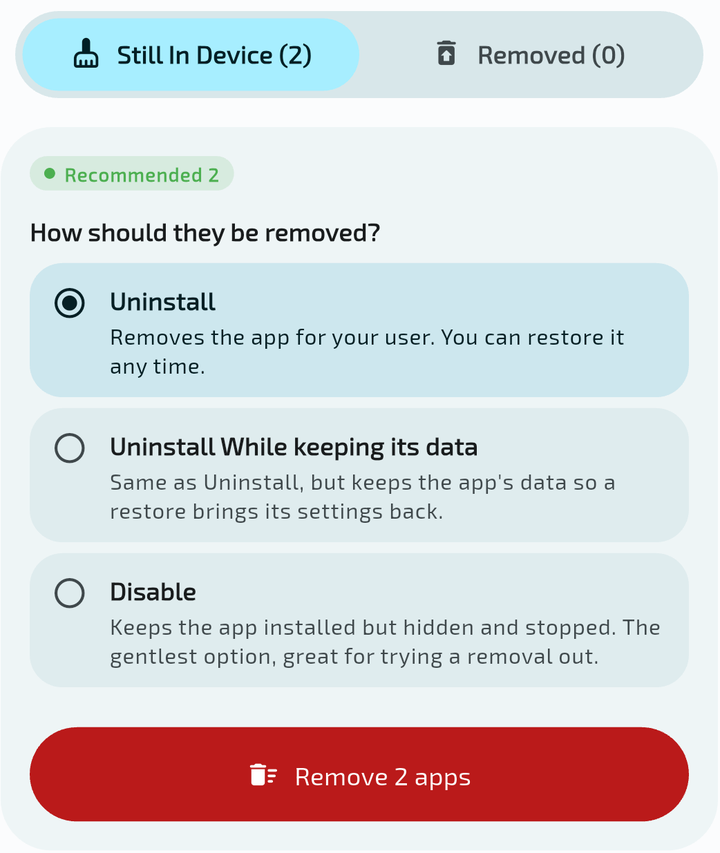
Debloater removes pre-installed system apps over ADB, using Shizuku. No root, no PC, no reflashing anything. Change your mind? Restore what you removed from the in-app history, any time.
Pre-installed apps you never asked for eat storage, memory and battery. Get rid of them, safely.
Say goodbye to unnecessary system apps! Debloater helps you uninstall pre-installed bloatware with just a tap, freeing up space and improving performance.
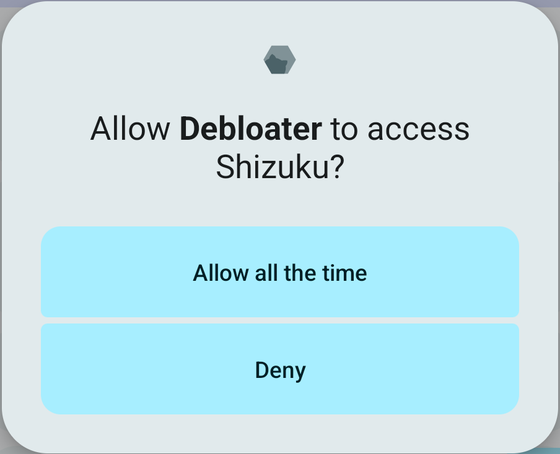
With Shizuku integration, you can uninstall system apps using ADB shell access without needing a computer. No complex setup—just grant permission and remove apps instantly.
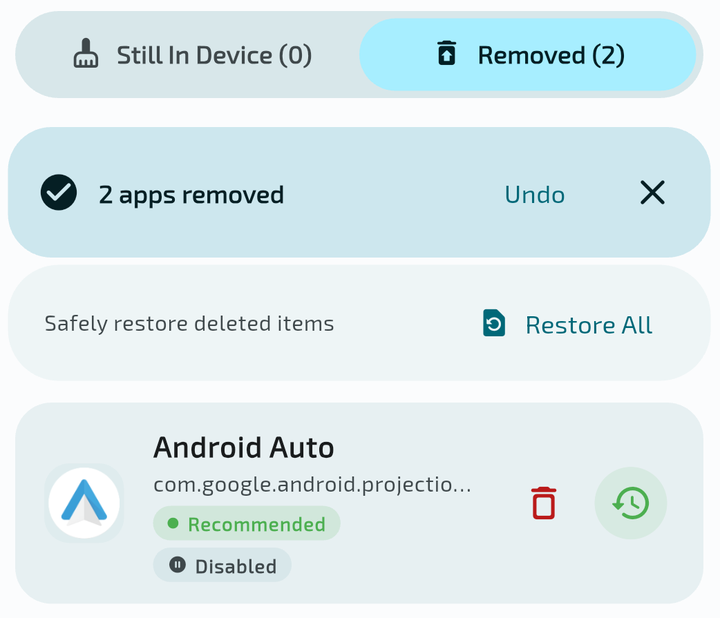
Accidentally removed an app? No worries! Debloater keeps track of uninstalled apps, allowing you to reinstall them whenever needed.
Shizuku provides the ADB access, straight from your phone.
Known-safe and known-unsafe packages are flagged, based on the community Universal Android Debloat lists.
Every removal is saved on your device so you can bring it back.
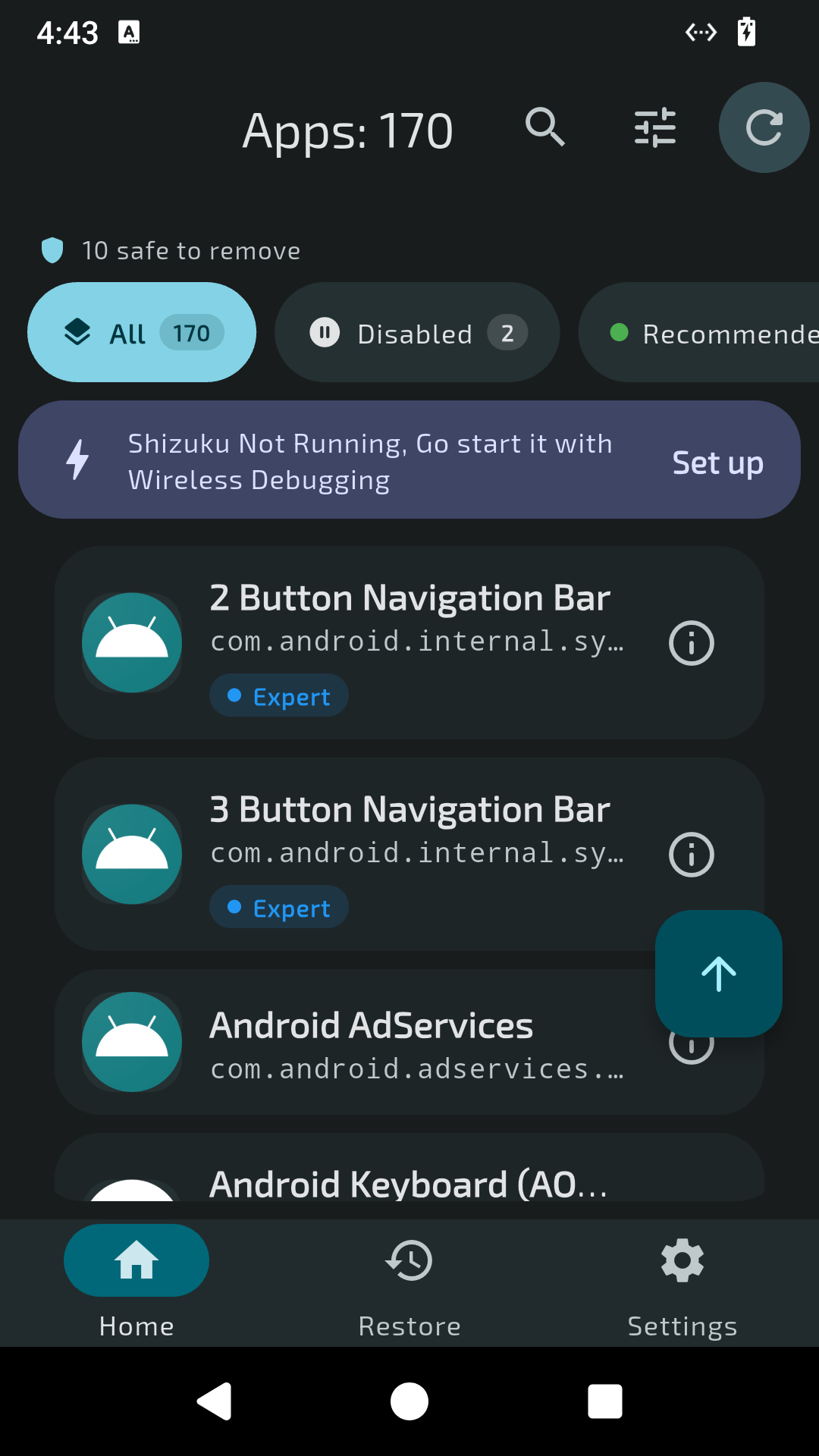
Material You dynamic colors, custom accents and a pure black dark mode.
English, Deutsch, Français, हिन्दी, தமிழ், 中文, 日本語, Español, Português, Русский.
Free with ads. Donations keep the updates coming.
Get both apps, then start Shizuku once with wireless debugging. It only takes a few minutes. Requires Android 11 or newer.
Browse your system apps, with known-safe and known-unsafe packages flagged, and select the ones you don’t want.
Tap the bin icon to remove them. Changed your mind? Every removal is in your history, ready to restore.
Follow the setup guide and be done in minutes.