🛠 How to Use Debloater
1️⃣ Select apps
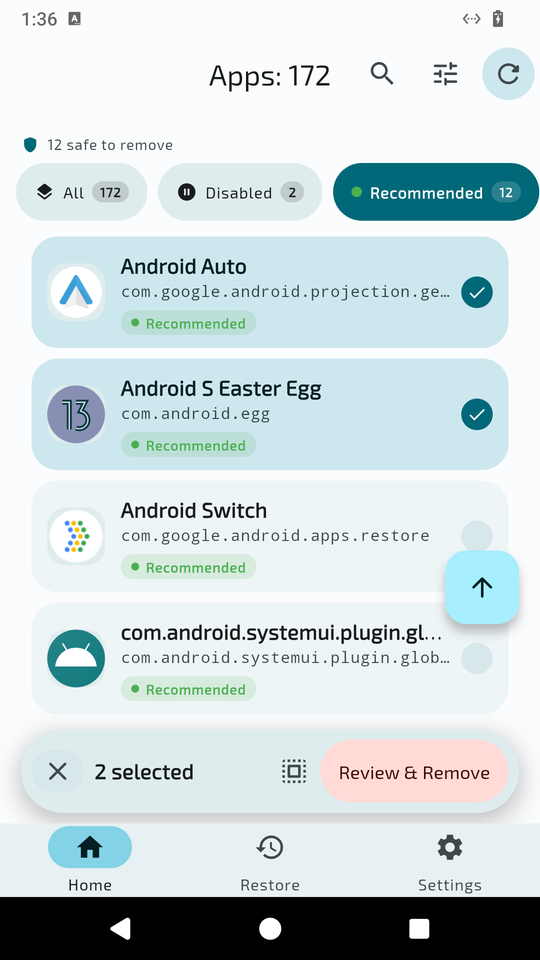
- Open the app and browse the list of system apps. Use the search icon or the filter pills (Recommended, Advanced, Expert, Unsafe, Disabled) to narrow it down.
- Each app carries a coloured tag that tells you how safe it is to remove. Recommended is safe; Expert and Unsafe need care. Apps Android refuses to uninstall are marked Won't uninstall and can't be selected.
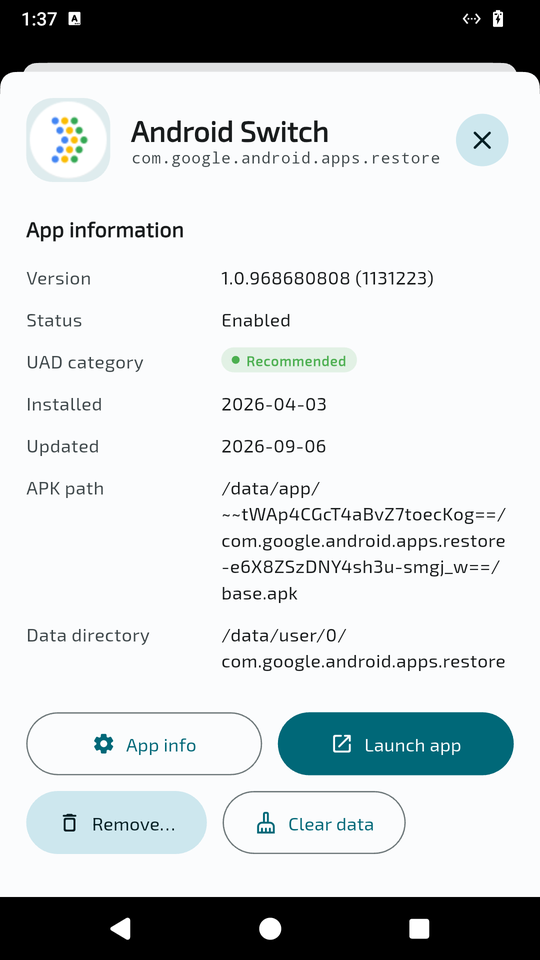
- Tap an app (or long-press it) to select it. Tap the ⓘ icon on a row to see its version, install date, file paths and category.
2️⃣ Review & Remove
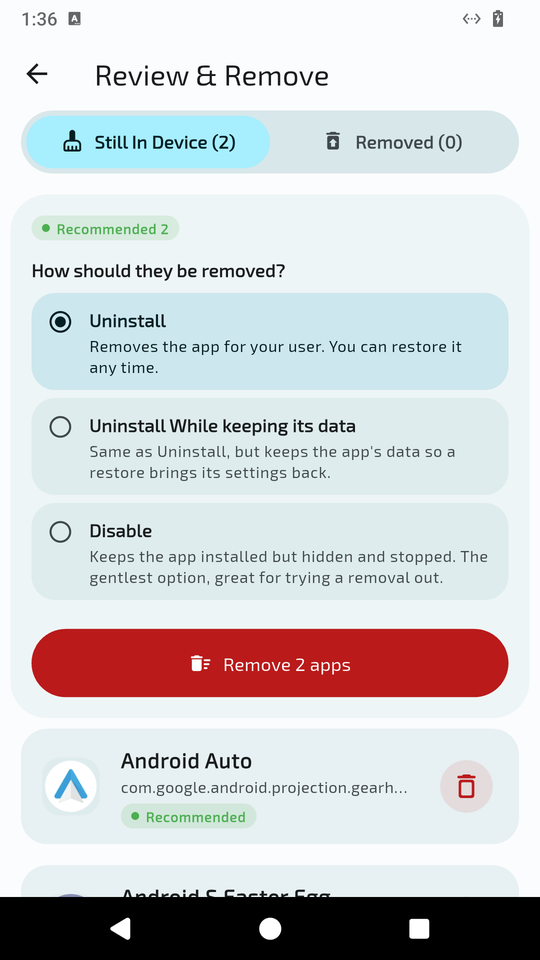
- Tap Review & Remove. Nothing has been removed yet: this screen lets you check your selection first.
- Pick how the apps should be removed:
- Uninstall removes the app for your user.
- Uninstall while keeping its data does the same but keeps the app's data, so a restore brings its settings back.
- Disable keeps the app installed but hidden and stopped. It is the gentlest option and a good way to try a removal out.
- Tap Remove. If your selection includes apps tagged Unsafe, Debloater asks you to confirm first.
3️⃣ Undo or restore
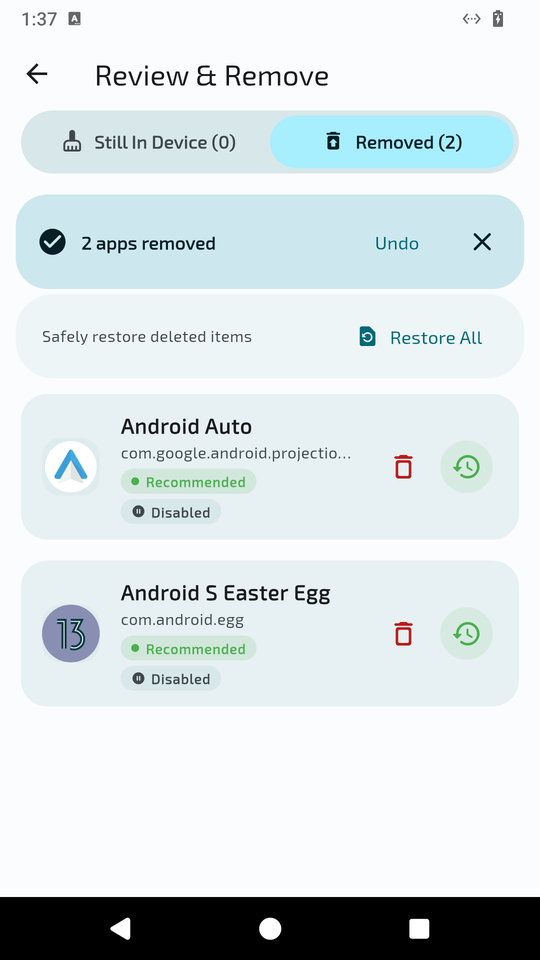
- Changed your mind right away? Tap Undo on the result card.
- Later on, open the Removed tab of the Review screen or the Restore tab of the app. Tap an app to bring it back, or tap Restore All to restore everything.
Per-app options
The ⓘ sheet also lets you open the system App info page, Launch the app, Enable it if it is disabled, Clear data, or jump straight to Remove… for that one app.
warning
Some system apps are critical to Android. Removing them can cause problems, including bootloops. If you're not sure what an app does, look it up first, or start with Disable.